We have all been there: it's a long-awaited public holiday, you are deep in a peaceful sleep, and suddenly—BEEP BEEP BEEP. Your 6:30 AM work alarm goes off because you forgot to turn it off the night before. Your sleep is ruined.
Conversely, the nightmare continues after the holiday ends. You turned your alarm off for the break, forgot to toggle it back on for the working day, and ended up being an hour late for a crucial morning meeting.
If you are wondering how to make your iPhone alarm skip holidays, you are not alone. Let's dive into why the native iOS Clock app falls short and how you can fix this frustrating problem once and for all.
The Problem: Why the Native iPhone Alarm Can't Skip Holidays
Despite countless iOS updates, the default Apple Clock app remains surprisingly basic. When you set a repeating alarm, your only option is to select specific days of the week (e.g., Every Monday to Friday).
The native iPhone alarm does not sync with your calendar. It doesn't know if tomorrow is Christmas, Thanksgiving, or a national bank holiday. This limitation creates significant pain points for modern office workers:
- Ruined Off-Days: Being rudely awakened on a day you are supposed to rest.
- The "Toggle Anxiety": The constant mental burden of remembering to manually turn your alarms off before a holiday and back on before work resumes.
- Financial & Professional Loss: Forgetting to toggle the alarm back on can result in missed shifts, lost wages, or leaving a bad impression on your boss due to tardiness.
The Solution: How to Set Your iPhone Alarm to Skip Holidays
Since Apple doesn't provide a built-in "skip public holidays" toggle, the best and most reliable solution is to use a dedicated smart workday alarm app like reAlarm.
reAlarm is designed specifically to read your local holiday calendars and intelligently adjust your wake-up schedule. Here is the step-by-step guide to setting it up:
Step 1: Download reAlarm
First, download the smart workday clock reAlarm from the App Store.
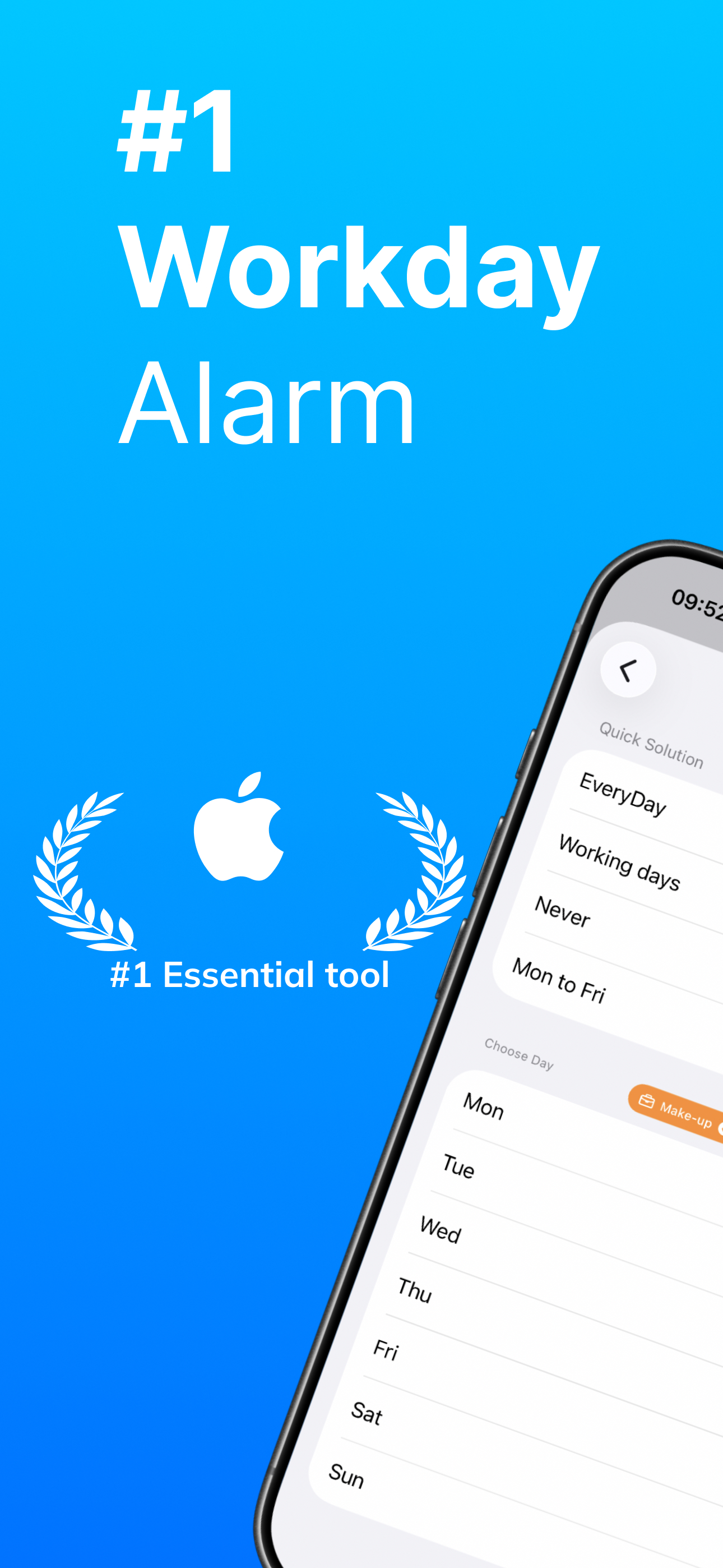
Step 2: Create a New Alarm
Open the app and tap the "+" button in the top right corner of the home screen to create a new alarm.
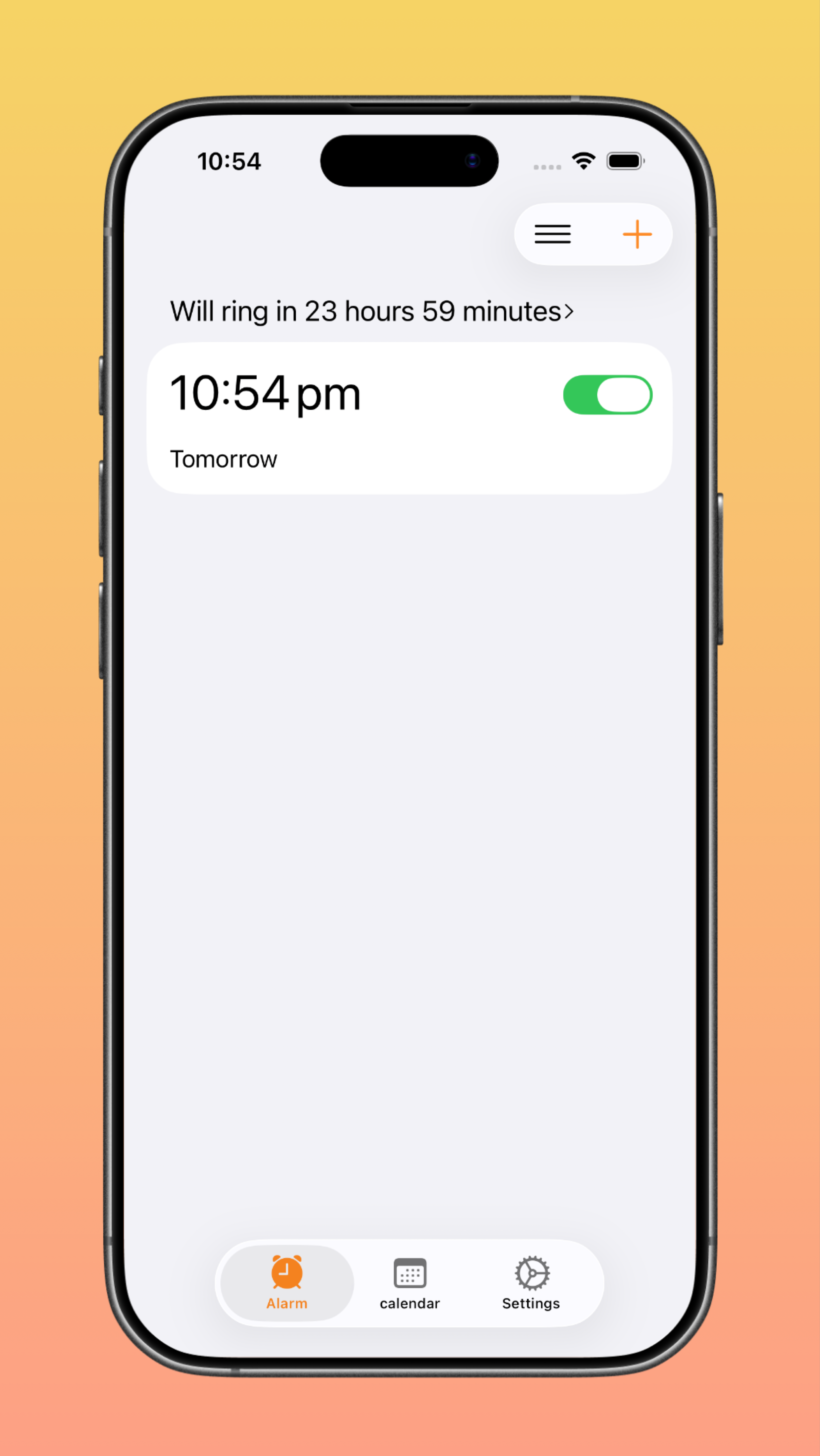
Step 3: Set Your Wake-up Time
Choose your desired ringing time (e.g., 7:00 AM) just like you would on a normal clock.
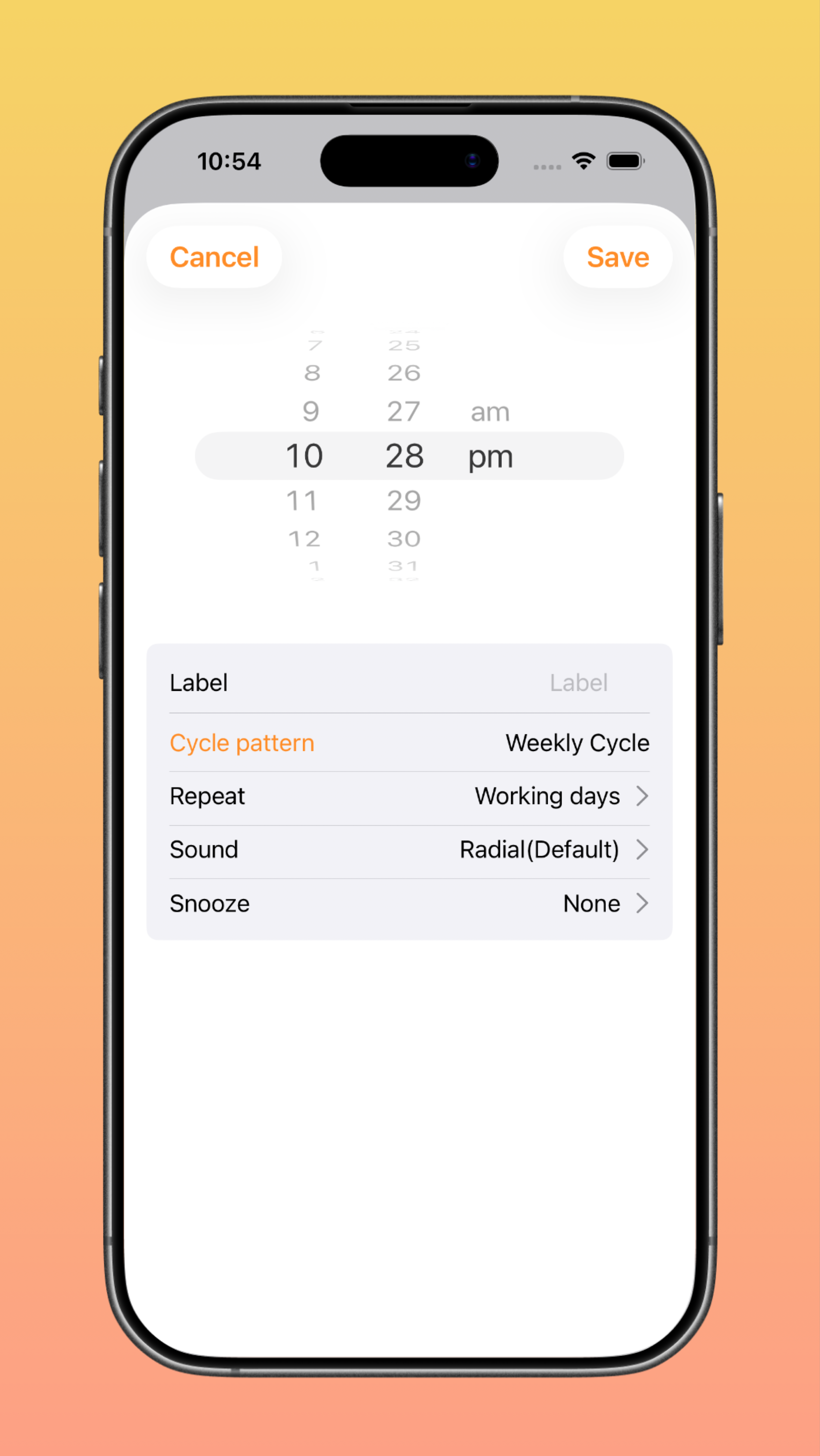
Step 4: Configure the Repeat Settings
Tap on the Repeat section to enter the scheduling menu.
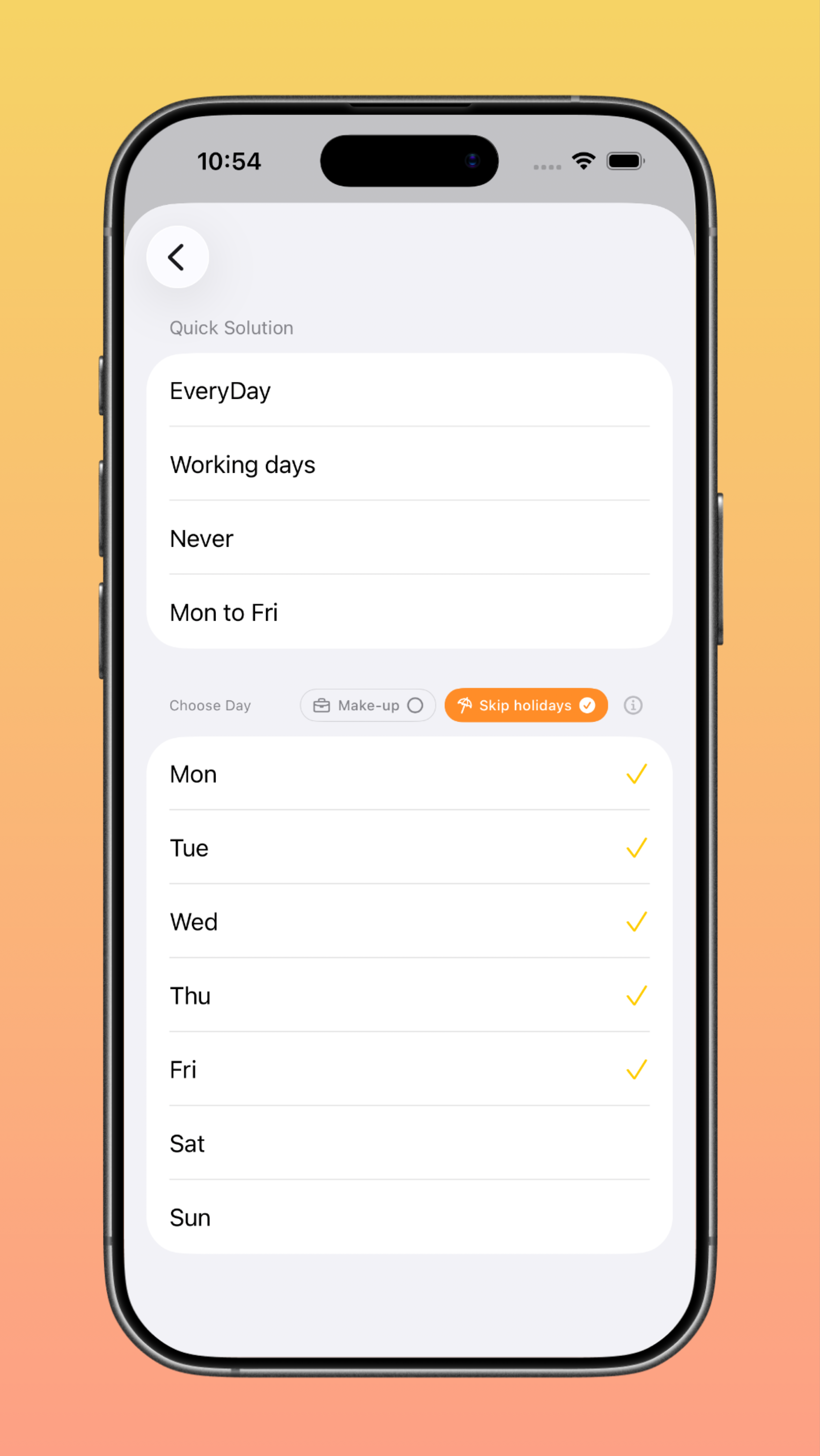
Step 5: Enable "Skip Holidays" (The Crucial Step!)
In the Choose Day section, select your standard working days (e.g., Mon–Fri). Then scroll down and check the Skip holidays box. This tells the app to cross-reference your days with the official public holiday calendar automatically.
Step 6: Save and Sleep Peacefully
Tap Save. You are done!
Now, you can set your alarm once and completely forget about it. When a holiday approaches, reAlarm will stay silent, and it will automatically resume its normal schedule on your next working day.
Beyond Skipping Holidays: The Ultimate Smart Alarm for Complex Schedules
While the ability to make an iPhone alarm skip holidays is a game-changer for regular 9-to-5 workers, what if your schedule is more complicated?
reAlarm offers a suite of advanced scheduling modes to meet the needs of any lifestyle or profession:
Flexible Weekly Cycle
Not just for the 9-to-5: Freely select any day from Monday to Sunday. It automatically skips public holidays and can even ring on designated "makeup workdays" (if applicable in your region).
Custom Cycle (Break the 7-Day Limit)
Define your own loop: Set your alarm cycle by exact days. Set a 14-day cycle to perfectly handle "alternating weekends" (e.g., working every other Saturday).
Ideal for "1-day on, 1-day off" or "4-on, 2-off" schedules used by security guards, receptionists, dispatchers, retail workers, and manufacturing staff. Perfectly matches fitness routines like "3 days on, 1 day off", or regular household reminders like watering plants every 7 days or changing pet water every 15 days.
Dedicated Shift-Work Alarm
The ultimate tool for shift workers: Designed specifically for professions with constantly changing hours. Say goodbye to the exhaustion of calculating your alarm time every night.
Flawlessly adapts to nursing schedules (e.g., 2 days, 2 nights, 2 off), 24/7 call center rotations, or the highly irregular schedules of flight attendants. Input your pattern once, and whether it's a morning, swing, or night shift, reAlarm will wake you up right on time.
Makeup Workday Only Alarm
Matches official holiday calendars. It stays silent on regular days and only rings on designated "makeup workdays" to ensure you never miss a shift. The perfect anti-tardy tool for long stretches of work after a holiday, and great for parents setting up weekend tutoring or extracurricular alarms for kids.
Monthly / Yearly Cycle
Say goodbye to easily ignored system reminders.
- Monthly: Pay rent, mortgages, or credit card bills; claim monthly vouchers; schedule pet medications; replace contact lenses; or cancel a free trial before auto-renewal.
- Yearly: Never forget a wedding anniversary, family birthdays (supports Lunar/Solar calendars), or annual car inspections.
Specific Date (One-Time) Alarm
Select multiple specific dates, accurate to the minute. Rings once, then it's done. Perfect for early flights, midnight sales, concert ticket drops, or one-off appointments where being late is not an option.
Take Back Your Mornings
Your alarm clock should work for you, not the other way around. Stop worrying about turning alarms off for holidays or doing mental math for your next shift.
Download reAlarm today and enjoy the peace of mind that comes with a truly smart schedule.